Setup
Setting up a new TV: eight steps to a good picture and sound
Unpack, connect, scan for channels and done? Eight steps get you a lot more: from the right HDMI input and the privacy prompts to the picture mode.
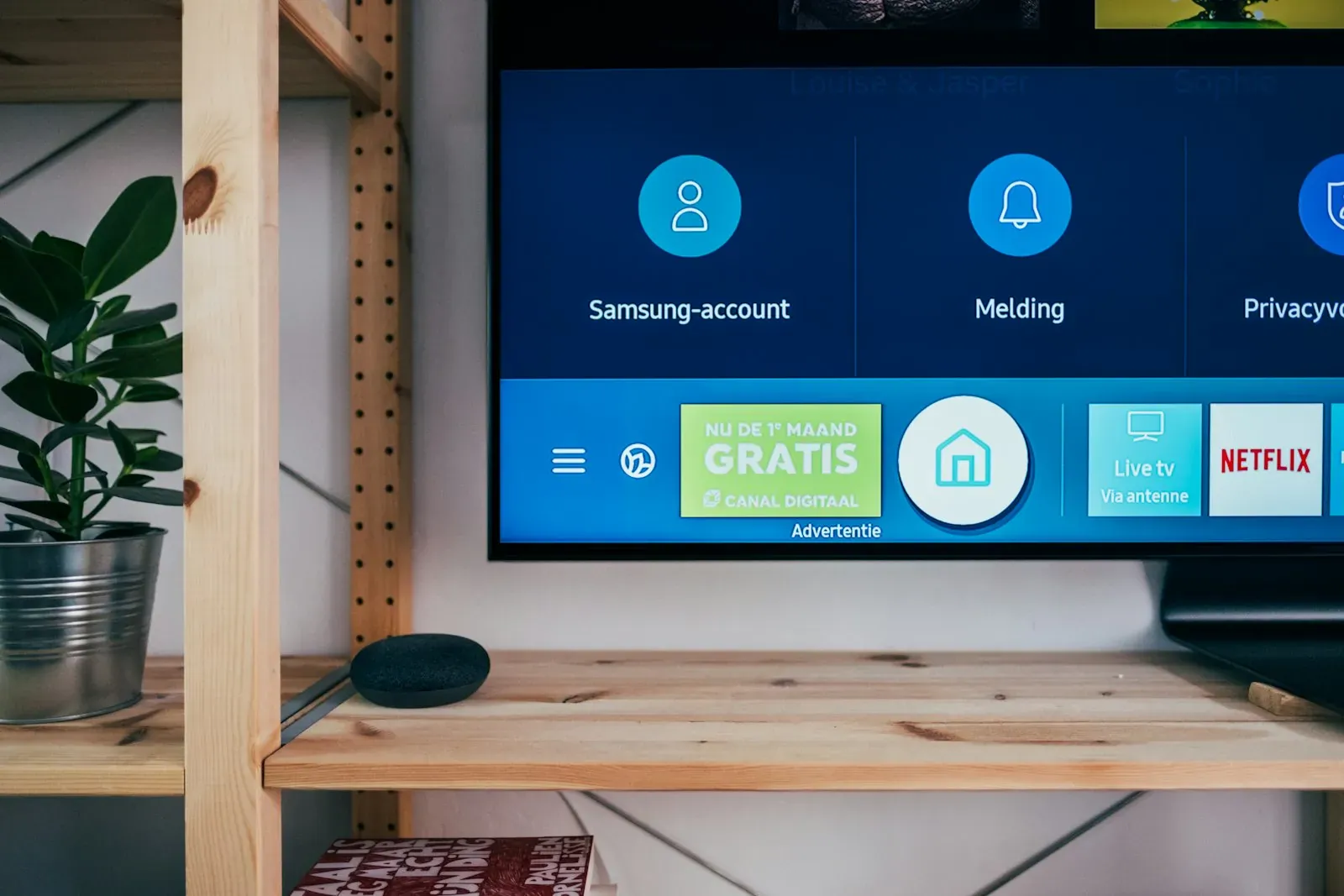
A new TV is up and running after ten minutes. That doesn't mean it is set up well: out of the box, many sets are too bright, too cool and tuned for the shop, and important functions are switched off. These eight steps get you a picture and sound that suit your living room.
1. Position and connect
Carry the TV with two people and hold it by the frame, never by the screen. Then connect all your devices before you switch on:
- Soundbar or receiver to the HDMI socket labelled "eARC" or "ARC".
- Games console to an input labelled "120 Hz" or "4K 120". Not every input can do this.
- Network cable, if there is a socket nearby.
2. Network: cable before Wi-Fi
Streaming in 4K needs a stable connection. A network cable is always the safer choice. If Wi-Fi is the only option, choose the 5 GHz network where possible. If the picture stutters later, the cause is often the Wi-Fi and not the TV. More on this in the article WiFi that reaches everywhere.
3. Account and privacy
During initial setup the TV asks for a lot of consents. Only the terms of use are required. You can decline the analysis of your viewing habits, personalised advertising and voice recording, and the TV will still work. You need an account with the manufacturer if you want to install apps.
Important when you are asked where the set will be used: choose "Home" and not "Store" or "Demo". In store mode the set keeps resetting the picture to maximum brightness.
4. Channels and TV app
In Switzerland, programmes mostly come through your provider's app, such as Swisscom blue TV, Sunrise TV, Zattoo or Teleboy. Install the app and sign in. If you have a cable connection, start the channel scan and sort the list by hand once. Which type of reception suits you is covered in the article Television in Switzerland.
5. Choose the picture mode
The biggest gain in the shortest time: switch from "Standard" or "Dynamic" mode to "Cinema", "Movie" or "Filmmaker Mode". The picture looks warmer and darker at first, but it shows the colours as they were intended. Also switch off motion smoothing for films and check whether an energy-saving mode is dimming the picture. We explain the details in the article Setting up the television properly.
6. Enable the HDMI inputs
Many TVs only deliver full quality at the HDMI inputs once you enable them in the menu. The setting has a different name depending on the manufacturer, for example "enhanced signal format" or "HDMI Deep Colour". Without it, no HDR and no 4K at 120 Hz arrives from the console, player or streaming box. For consoles, also activate game mode. More on this in the article The right television for PlayStation, Xbox and Switch.
7. Set up the sound
With a soundbar or receiver, set the audio output to "HDMI eARC" and the format to "Pass-through" or "Bitstream". Only then does Dolby Atmos get through. Also activate HDMI-CEC: the TV remote then switches the soundbar on as well and controls its volume. If dialogue is hard to understand, the article Setting up television sound properly will help.
8. Update and tidy up
To finish:
- Update the software and switch on automatic updates.
- Remove apps you don't need from the home screen.
- Rename the inputs, for example "PlayStation" instead of "HDMI 3".
- Don't cut the power to an OLED TV with a power strip. Panel maintenance runs in standby, see OLED burn-in.
When help is worth it
You can manage the eight steps yourself in an evening. Help is worth it when several devices need to work together, when the TV is going on the wall and the cables should disappear, or when you would like the picture measured. We set up TVs at your home in the Solothurn, Bern and Biel region: set, mounting, cabling and setup from a single source.
More on this: TV advice at home and TV setup and calibration.

In person
Philip Fiumi
Managing Director
Questions about Calibration?
Write or call. We’ll advise you with no obligation and get back to you within one working day.
Matching service
More services.
More articles
News
OLED burn-in: how big the risk is and how to avoid it
Burn-in is the most common worry before buying an OLED TV. What happens in the panel, who is really affected, which protective functions are built in and when Mini-LED is the better choice.

TV size in inches to cm: table with width and height from 32 to 100 inches
How many centimetres are 55, 65, 77 or 100 inches? A table with diagonal, width and height, the conversion from cm to inches and what you need to allow extra for furniture, wall and transport.
HDR, nits, VRR, eARC: TV terms explained in plain language
Manufacturers' spec sheets read like a puzzle. We translate the most important terms and tell you which ones really matter when buying.